 We’ve secured funding to power Signal-to-Revenue AI to GTM teams globally. →
A CNAME Record (Canonical Name record) is a DNS record that maps one hostname (an alias) to another hostname ...
How to Install the Wyzard Plugin for Google SSO: A Step-by-Step Guide
Published
Categorized as Uncategorized

Subscribe Now
How to Install the Wyzard Plugin for Google SSO: A Step-by-Step Guide
Preparing for Installation
Before starting the installation, you need to ensure that you meet the prerequisites and have everything in place for a smooth setup.
Prerequisites
- Admin access to your Google Workspace account. Do keep your admin credentials handy!
- The Wyzard Plugin installation package
- Your Super Admin Email id
Installation Steps for the Wyzard Plugin
Follow these step-by-step instructions to install the Wyzard Plugin and enable Google SSO for your organisation.
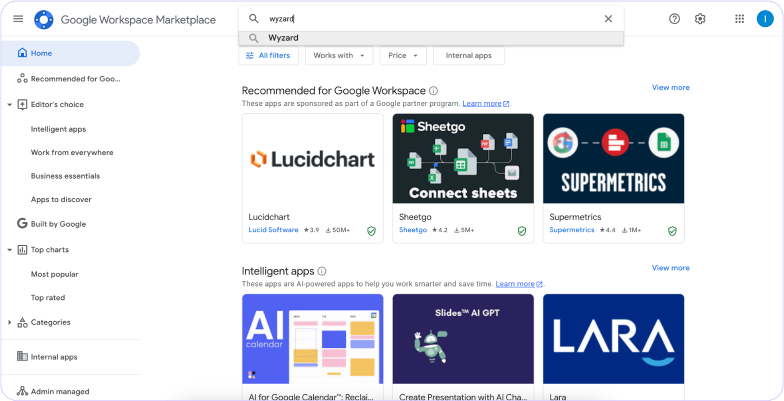
Step 1: Open Google Workspace and Search for Wyzard
Open Google Workspace in your system. Search for Wyzard in the Search bar. Please spell WYZARD correctly. Its with a “Y”
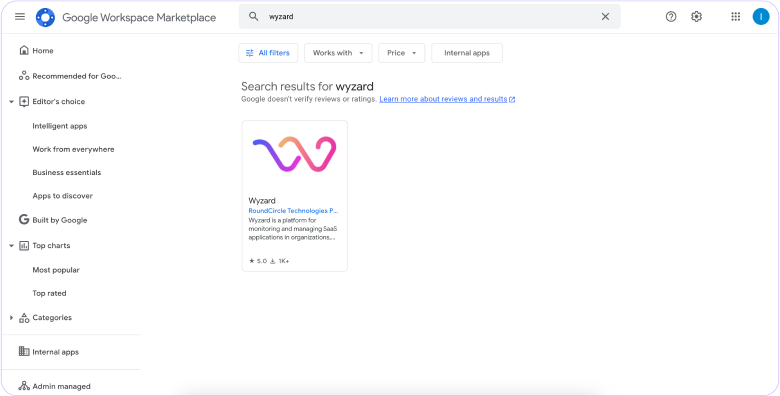
Step 2: Click on the Wyzard Card
Click on the Wyzard Card in your Search Results to proceed further
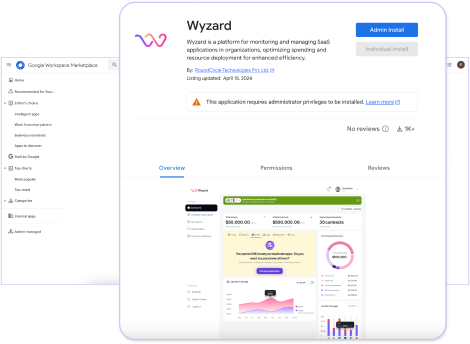
Step 3: Install the Wyzard Plugin on Your Server
Visit Wyzard at Google WorkSpace to install the Wyzard Plugin to your server.
Select “Admin Install” to initiate the process. Follow the installation wizard’s prompts, which will guide you through configuring the plugin settings to match your organisation’s requirements.
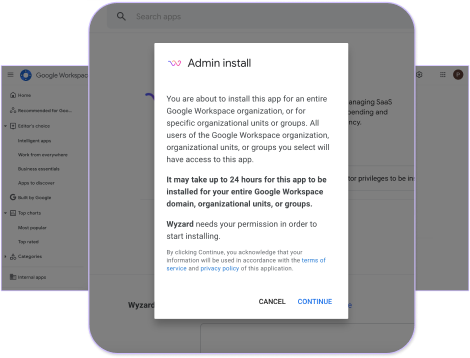
Step 4: Granting Installation Permission
You will be prompted to grant Wyzard permission to begin the installation. It is safe to click “Continue” and proceed to the next stage.
Please note that the full installation process typically takes up to 24 hours to complete.
Step 5: Reviewing and Granting Permissions to Wyzard
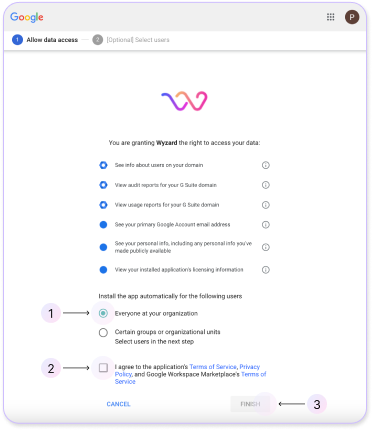
You will receive a list of all the permissions and access you will be granting to Wyzard.
While these permissions are necessary for effective data utilisation, we strongly recommend that you review the list carefully. Additional information is always available if you need it.
Once reviewed, select “Everyone at your organisation” and click Finish.
Step 6: Locating and Accessing the Wyzard App
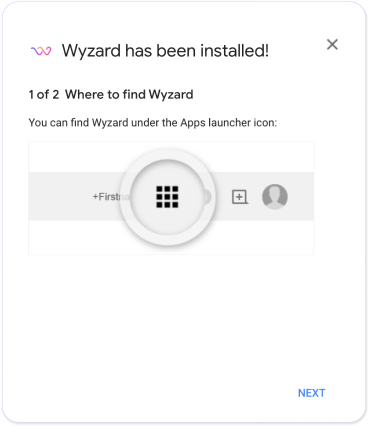
Now, you can find the Wyzard app in your Apps section. Locate the app to get started immediately. For faster access, you can always create a shortcut.
Step 7: Make sure you click on the “Complete additional Setup now”
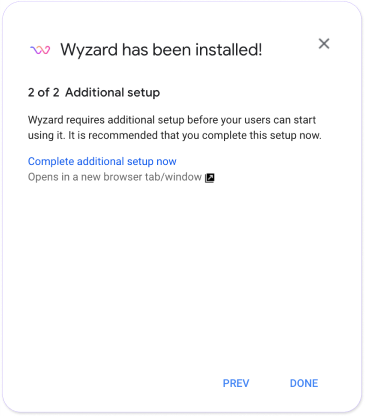
For lightning-fast data synchronisation automation, be sure to finalise the process by clicking on “Complete additional setup now.”
Other blogs
The latest industry news, interviews, technologies, and resources.
What Is A BIMI Record And How To Set It Up
A BIMI record (Brand Indicators for Message Identification) is a DNS-based email standard that can display your brand logo ...

What Is A Return-Path Record And How To Set It Up
Return-Path is an email header (and domain) that tells mail servers where bounce messages should go when an email ...
