What Is A CNAME Record And How To Set It Up
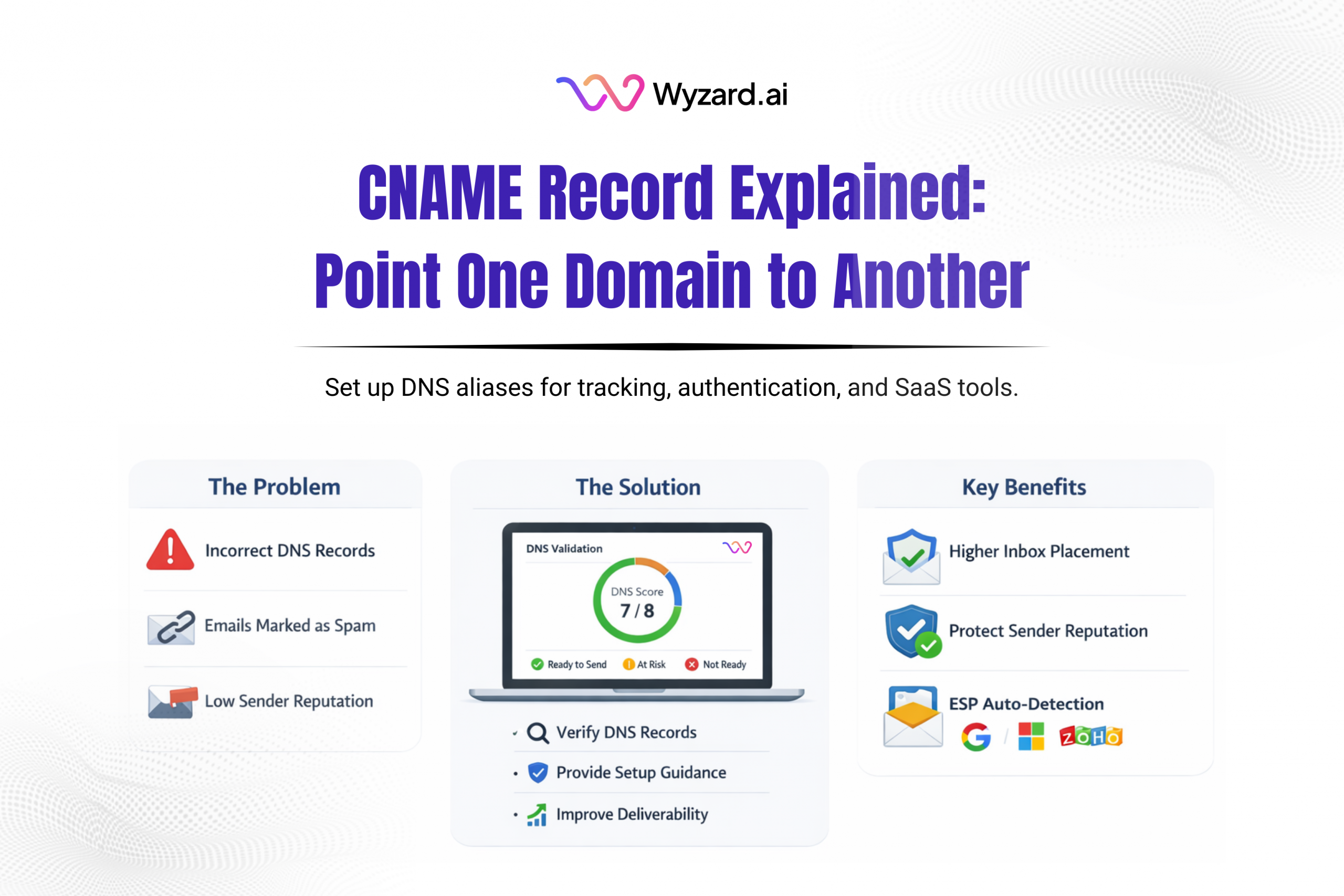
A CNAME Record (Canonical Name record) is a DNS record that maps one hostname (an alias) to another hostname (the canonical name). A CNAME does not point directly to an IP address. It points to a domain name that later resolves to an IP. This helps keep DNS simpler when multiple hostnames should lead to the same destination.
What CNAME Records Are Used For
CNAME Records are common when connecting third-party services to your domain. Typical uses include:
- Email authentication (example: DKIM setups that require CNAME targets)
- Email tracking subdomains for clicks and opens
- Custom bounce or Return-Path subdomains
- SaaS product connections and white-labeled domains
- CDN and hosting configurations
How A CNAME Record Works
- A browser, app, or mail server queries DNS for something like track.yourdomain.com.
- DNS replies with a CNAME that points to a target like tracking.emailprovider.com.
- DNS then resolves the target domain to its IP address.
- The request completes using that destination.
One advantage is that if the provider changes its IPs, your alias can keep working without any change on your side.
Why CNAME Records Matter
Teams use CNAMEs to keep DNS easier to manage and vendor integrations smoother:
- Fewer duplicated DNS updates across related hostnames
- Cleaner vendor setups for email authentication, tracking, and routing
- Branded subdomains that look consistent with your domain
- A scalable way to point multiple subdomains to one service
How To Set Up A CNAME Record
Step 1: Choose a subdomain to use as the alias
Examples: email.yourdomain.com, dkim.yourdomain.com, track.yourdomain.com.
CNAME Records can’t be used on the root domain (yourdomain.com).
Step 2: Get the target hostname from your provider
Example mapping: email.yourdomain.com points to email.provider.com.
Step 3: Add the record in your DNS provider
Example fields:
- Type: CNAME
- Host/Name: email
- Value/Target: email.provider.com
- TTL: default or auto
Step 4: Verify the record
DNS changes can appear in minutes or take longer. Confirm using your provider’s verification flow or a DNS lookup tool.
Limits To Keep In Mind
- A CNAME can’t share the same hostname with other record types.
- CNAMEs are for subdomains, not the apex/root.
- A CNAME adds an extra DNS lookup step.
CNAME Record Pointing Right At Revenue With Wyzard.ai
CNAME Records often sit behind authentication, tracking, and bounce routing. If a CNAME points to the wrong place, outbound performance can take a hit through broken tracking or failed verification. Wyzard.ai helps teams spot DNS setup issues early by validating sender readiness signals before sequences go live. Learn more at Wyzard.ai.